How To Use A Desktop Immutable Linux Distribution
A lot of experienced and new users get confused when trying to use an immutable Linux distribution. This guide aims to simplify how to use one.
Before We Start
This guide it meant to point you in the right direction so you can understand the concept of using an immutable distribution. I won’t write about specialized situations you’ll need to figure that out yourself.
I’m writing this for strictly for immutable Linux distributions that are meant for end-user desktop usage.
I use GNOME, some things might be slightly different on other DE’s.
This guide is not meant for immutable server distributions or regular distributions though in theory everything should apply to these.
I’m assuming you have an idea of how restrictive immutable distributions get and are willing to work around that even if the workarounds are tedious.
Don’t Look For Tutorials
I know this contradicts this guide, what I mean is don’t search up how to install something or ask an AI. This is because these are often wrong or take the easy path leading to problems. Instead look at the distributions official documentation it will have everything you need.
Another thing to ignore is all the “things to do after installing” tutorials. Immutable distributions are meant to work out of the box without modifications. For example if you need video codecs the Flatpaks from Flathub bundle them for you. The only thing you might need is hardware drivers.
Installing Packages
Installing certain packages on immutable distributions is sometimes confusing and difficult, I’ll try my best to simplify it.
Most of you will have to relearn package installation because we will avoid modifying the base image as much as possible. (most of you know this as “layering”) If you plan to modify the base image every time you need to install something you should use a traditional distribution.
Hardware Drivers
You will have to modify the base image to install these or find a distribution that will support your hardware by default.
Refer to your distributions documentation for modifying the base image. They might even have special documentation for installing the drivers you need.
Flatpak
Most immutable distributions rely on Flatpak heavily to install graphical applications.
There is not much to say here as Flatpaks “just work” and will bundle everything you need like video codecs.
Sometimes a Flatpaks sandbox might be to restrictive for you, you can fix this with Flatseal.
AppImage
AppImages work similarly to Flatpaks but they are an older technology, some lighter distributions won’t support AppImages anymore.
I recommend Gear Lever from Flathub for easier AppImage management.
If your distribution doesn’t support AppImages out of the box then you can run them through Distrobox / Toolbx.
Distrobox / Toolbx
These are very powerful and complex tools, I’ll try to make it easier to understand for 90% of use cases.
You can think of this as having a Linux distribution inside your current install. For example you can run Ubuntu inside Fedora Silverblue without a VM or dual booting, and its super light weight.
You can have as many containers of the same or different distributions as you want.
NOTE: These containers share your home directory so be careful with any command written in the container.
In the picture I am running Aeon as my main OS and an openSUSE Tumbleweed Distrobox container. Both on the same device.
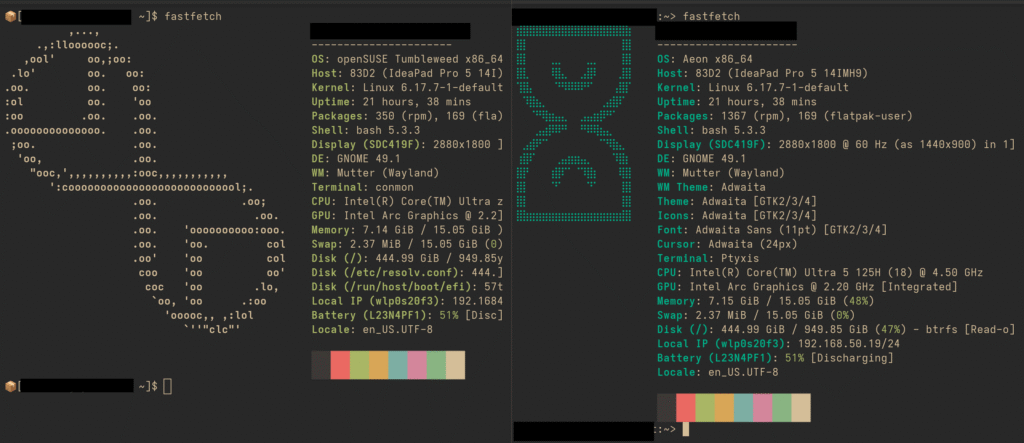
Distrobox is more feature complete compared to Toolbx but at their core they both do the same thing.
Now that you know what these tools do here is how to use them.
Open your terminal, create a container and enter it. Next you can just run the package manager that the distribution in the container uses to install what you need.
There are tools to make using Distrobox easier like DistroShelf. This tool allows you to export applications in the container to your desktop.
For Toolbx there aren’t much options for helper tools. You will need to create custom .desktop files for exporting applications you can place them in /home/$USER/.local/share/applications I’m unsure about KDE.
Specialized terminal emulators like Ptyxis might be useful to you as they have build in Distrobox and Toolbx support.
Distrobox and Toolbx are more powerful than the basic usage I just showed if you need more from them refer to their documentation.
- Distrobox documentation.
- Toolbox documentation.
Podman / Docker containers
Another option for installing packages is containers, since most immutable distributions will provide Podman or Docker by default for Distrobox or Toolbx functionality. You are allowed to do more with the container engine though.
Most distributions will provide Podman as the container engine you can combine this with Pods for easy usage. If your distribution provided Docker instead you should be able to use Whaler. These should also help you manage Distrobox or Toolbx containers if you wish.
I can’t write an example for starting a container for every application, but a basic example is my PaperMC Minecraft server in a container guide. This should give you a basic idea.
Installing Onto The Base Without Image Modifications.
In this example we will use music-discord-rpc. This is a single binary without any extras so its perfect as an example.
Once we download the binary we have to make it executable either with a terminal command. chmod -x /home/$USER/Downloads/music-discord-rpc Or you can just change the properties in your file manager.
Next decide if you want the binary to be limited to your $USER or a system wide install.
If you want a user only install move the binary into /home/$USER/.local/bin
Type the name of the binary into the terminal and it’ll work if you are logged into that specific user.
If you need a system wide install most immutable distributions leave /usr/local/ writable for this situation. You can move the binary into /usr/local/bin and it’ll work system wide.
If your distribution doesn’t allowing writing to /usr/local/bin then check their documentation as they might have a custom solution. If not then you are limited to /home/$USER/.local/bin
Everything above is basic example, if needed you can install stuff like Gutenprint it even installs into /usr/local/ by default.
Modifying The Base Image
If everything above doesn’t work for your needs you’ll need to modify the base image. Refer to your distributions documentation for that.
Customizing
Immutable distributions are pretty locked down by default but that doesn’t mean you can’t customize.
Don’t expect to swap out your whole DE but you do have more freedom than most expect.
Desktop Extensions
If you want extensions on GNOME then Extension Manager on Flathub will help you download them without issues.
By default KDE distributions have KDE default customization options so this is isn’t an issue for KDE users.
If you need further tweaking beyond extensions then.
- Refine is a decent GNOME tweaks replacement.
- Dconf Editor can help you tweak specifics.
- GDM Settings can help you change the login manager settings provided your /etc is writable.
System Customization
Most immutable distribtuions will leave /etc writable for any customization you might need to do.
You can also tweak the kernel cmdline for whatever you need, refer to the distributions documentation on how to do that.
Conclusion
That’s it, if you have any questions feel free to leave a comment.
If you haven’t tried an immutable Linux distribution yet check out my Aeon Desktop review you might like it.